TypixNode Wireless Card Keyboard
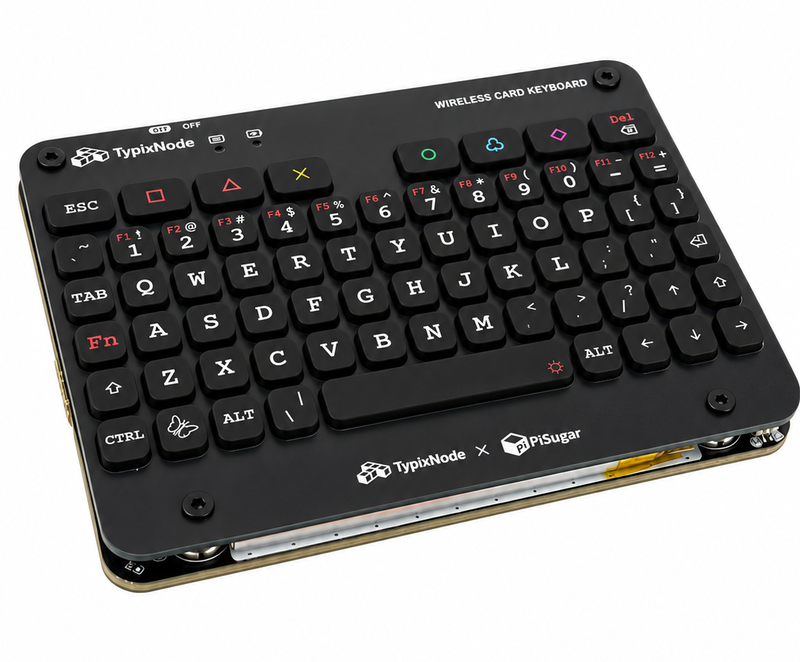
The TypixNode Wireless Card Keyboard is a card-sized portable keyboard designed by TypixNode and manufactured and sold by PiSugar. It runs the open-source ZMK firmware on an nRF52840 and works over both Bluetooth Low Energy (BLE) and USB-C.
It can remember up to six Bluetooth hosts, includes a six-axis IMU for experimental air-mouse control, and reports its battery level to compatible hosts. Its hardware and customized firmware are open source in the TypixNode ZMK repository.
At a glance
| Feature | Specification |
|---|---|
| Connection | Bluetooth Low Energy 5.0 and USB HID |
| Bluetooth name | TypixNode |
| Paired hosts | Up to 6 |
| Controller | nRF52840, nice!nano v2 compatible |
| Layout | Card-sized QWERTY, approximately 69 keys plus an Fn layer |
| Dimensions | 88 × 72 × 5.8 mm (excluding the approximately 1.2 mm key protrusion) |
| Air mouse | QMI8658A six-axis IMU; experimental |
| Backlight | White, available while USB power is connected |
| Battery | LP301060 LiPo, approximately 120 mAh |
| Charging | USB-C with charging-status LED |
| Firmware | Customized ZMK fork |
Power on and connect
Bluetooth
- Move the hardware power switch to ON.
- Hold Fn and press the first colored symbol key (■) to select Bluetooth slot 1.
- Open Bluetooth settings on the computer, phone, tablet, or other host.
- Select TypixNode and complete pairing.
To add another host, select a different slot with Fn + ■ / ▲ / ✕ / ● / ♣ / ◆, then pair from that host. Each symbol selects one of the six saved Bluetooth slots.
To switch between hosts later, press Fn with the corresponding symbol key.
USB
Connect the keyboard to the host with a USB-C data cable, then press Fn + Esc if you need to switch the active output between USB and Bluetooth.
The white key backlight is powered only while USB is connected. It turns off automatically on battery power to extend runtime.
Key functions
The Fn key is at the far left of the home row, in the position commonly used for Caps Lock. Hold it while pressing another key to use the Fn layer.
| Shortcut | Action |
|---|---|
| Fn + Esc | Toggle USB / Bluetooth output |
| Fn + ■ / ▲ / ✕ / ● / ♣ / ◆ | Select Bluetooth host 1–6 |
| Fn + Enter | Clear the current Bluetooth slot |
| Fn + 1–0 | F1–F10 |
Fn + - / = | F11 / F12 |
| Fn + Backspace | Delete |
| Fn + ↑ / ↓ / ← / → | Page Up / Page Down / Home / End |
| Fn + Space | Cycle the white backlight brightness |
| Fn + Left Alt or Right Alt | Cycle air mouse OFF → M1 → M2 |
| Fn + B | Enter the UF2 bootloader |
| Fn + C | Reset all settings and Bluetooth pairings, then reboot |
Fn + ] | Toggle power to the external accessory connector |
| Fn + Right Shift, pressed in sequence | Soft power off |
Double-tap actions
| Key | Single press | Double press |
|---|---|---|
| Esc | Escape | Caps Word; ends when you press Space |
| Left Shift | Shift | Caps Lock |
Key combinations
Press the listed keys at nearly the same time:
| Keys | Action |
|---|---|
| J + K | Escape |
| D + F | Tab |
| F + J | Enter |
| J + K + L | Caps Word |
| Fn + Right Shift, within 75 ms | Cycle air mouse OFF → M1 → M2 |
Macros
| Shortcut | Action |
|---|---|
| Fn + Q | Screenshot: Command + Shift + 4 |
| Fn + A | Select all, then copy |
| Fn + M | Type () => {} |
Fn + Right Shift has two timing-dependent actions. Press the keys together within 75 ms to change the air-mouse mode. Hold Fn first and then press Right Shift to soft power off.
Bluetooth management
Clear one pairing
- Select the affected slot with Fn + one of the six colored symbol keys.
- Press Fn + Enter to clear only that slot.
- Remove or forget
TypixNodein the host's Bluetooth settings. - Pair it again.
Clear all settings
Press Fn + C to erase all stored Bluetooth pairings and keyboard settings, then reboot. Use this only when clearing the current slot does not solve the problem.
Pairing data is stored in flash and remains available when the battery is disconnected or the power switch is OFF.
Battery level
The keyboard exposes the standard BLE Battery Service (0x180F). On macOS, check the device in System Settings → Bluetooth. On iOS or iPadOS, add the Batteries widget. After a new connection, allow about one minute for the value to synchronize.
Status lights
| Light | Behavior | Meaning |
|---|---|---|
| Top RGB LED | Red → green → blue once | Startup animation |
| Top RGB LED | Continuous color cycle | USB connected |
| Top RGB LED | Blue double-flash every 5 seconds | BLE standby |
| Top RGB LED | Red / green / blue double-flash | Air mouse changed to OFF / M1 / M2 |
| Red charging LED | Solid | Battery is charging; turns off when full |
| White underside LED | Solid | USB 5 V is present |
Air mouse
The built-in QMI8658A combines an accelerometer and gyroscope. Cycle modes with Fn + Left Alt, Fn + Right Alt, or by pressing Fn + Right Shift together within 75 ms.
| Mode | Indicator | Behavior |
|---|---|---|
| OFF | Red double-flash | IMU sleeps; keyboard only |
| M1 | Green double-flash | Kalman-filtered, steadier movement |
| M2 | Blue double-flash | Accelerometer tilt mapping, more responsive movement |
When M1 or M2 is active, the space bar's three matrix zones work as follows:
| Space-bar zone | Air mouse OFF | Air mouse ON |
|---|---|---|
| Left | Space | Left mouse button |
| Center | Space | Space |
| Right | Space | Right mouse button |
The air-mouse feature is experimental. Drift filtering and acceleration behavior may change in later firmware.
Backlight, charging, and storage
- Press Fn + Space to cycle backlight brightness. The backlight starts off and is available only when USB power is connected.
- The red LED remains lit while charging and turns off when the battery is full.
- For long-term storage, move the hardware switch to OFF. This physically disconnects the battery while preserving saved pairings in flash.
- The firmware project's stated BLE standby time is more than 48 hours; actual runtime varies with use and battery condition.
Firmware update
Use firmware built specifically for the TypixNode keyboard. The latest source and release information are available in the TypixNode ZMK repository.
Enter the bootloader
Use either method:
- While the keyboard is working, press Fn + B.
- If the firmware is unresponsive, double-press the board's reset button.
A USB drive named NICENANO appears on the connected computer. Copy the appropriate .uf2 firmware file to that drive. The drive disconnects and the keyboard restarts automatically when flashing is complete.
Use a USB-C data cable and do not disconnect power while the firmware file is being copied. Flash only firmware intended for this product.
Build from source
The keyboard shield is located at app/boards/shields/typixnode_keyboard/ in the upstream repository. After setting up the repository's Python environment and Zephyr/ZMK dependencies, build with:
.venv/bin/west build -s app -p always \
  -b nice_nano/nrf52840/zmk -- -DSHIELD=typixnode_keyboard
The resulting firmware is written to build/zephyr/zmk.uf2. Follow the repository's current build instructions if they change.
Hardware specifications
| Item | Specification |
|---|---|
| Dimensions | 88 × 72 × 5.8 mm (excluding the approximately 1.2 mm key protrusion) |
| Keyboard matrix | 6 rows × 13 columns, row-to-column diodes |
| Debounce | 10 ms press / 10 ms release |
| IMU | QMI8658A six-axis sensor over I²C |
| External I²C / Qwiic | JST-SH 1.0 mm, 4-pin: GND / 3V3 / SDA / SCL; Qwiic / STEMMA QT compatible |
| Backlight driver | AP3032 boost LED driver, PWM on P0.15 |
| RGB status LED | Three PWM channels |
| External power control | P0.13 to LDO enable |
| USB identity | VID 0x1209, PID 0x0001, TypixNode Keyboard |
| BLE identity | TypixNode |
Troubleshooting
The keyboard does not appear in Bluetooth settings
Select an unused Bluetooth slot. If the slot was previously paired, clear it with Fn + Enter, forget the device on the host, and try again. Use Fn + C only if individual-slot recovery fails.
The backlight does not turn on
Connect USB power, then press Fn + Space. The backlight is intentionally disabled on battery power.
The NICENANO drive does not appear
Try another USB-C cable that supports data. If Fn + B is unavailable, double-press the board's reset button.
Air-mouse movement is unstable
Cycle to M1 for steadier movement or cycle to OFF. The feature is still experimental.
Source and licensing
The hardware documentation and customized ZMK firmware used as the basis for this guide are published at github.com/TypixNode/typixnode-zmk. Refer to that repository for source code, license terms, firmware history, and the latest technical changes.